RLOGIN to a CS1K (Win)
This procedure describes how to configure PuTTY (the well known Windows SSH, Telnet and Rlogin client) to connect to a CS1000 using rlogin. It only applies to pre-Release 5.5 systems.
In most cases you will want to disable the Windows Firewall, and/or "Allow ICMP echo requests" (Windows XP: Network → Local Area Connection → Advanced Settings), in order to stop the connection randomly dropping.
 Download the latest version of PuTTY
 From Rel 5.5, use SSH (not rlogin). Enter the Call Server IP address for 'host name', and hit connect. The following rlogin procedure applies to pre 5.5 systems.
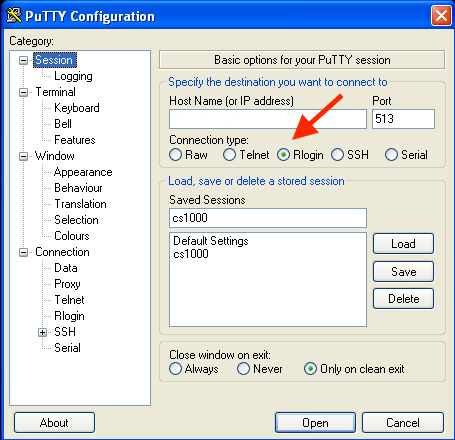
Double click it, and the configuration window opens:
- Enter the Call Server IP address in the Host Name box.
- Select the Protocol as Rlogin, Port is 513.
- Enter a name in Saved Sessions
- Click Save to store the session
NOTE: Click on the images for a larger view!
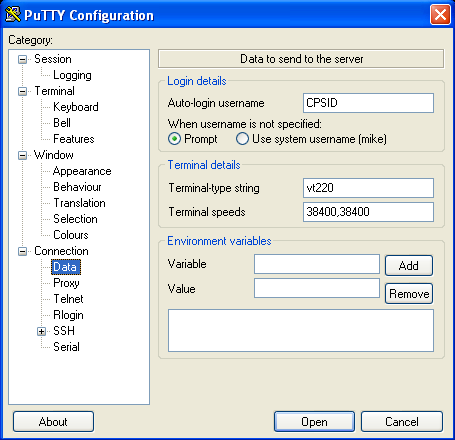
- Set the Auto-login username to CPSID
- Change the Terminal-type String to vt220* was 'Connection' in older PuTTY versions.
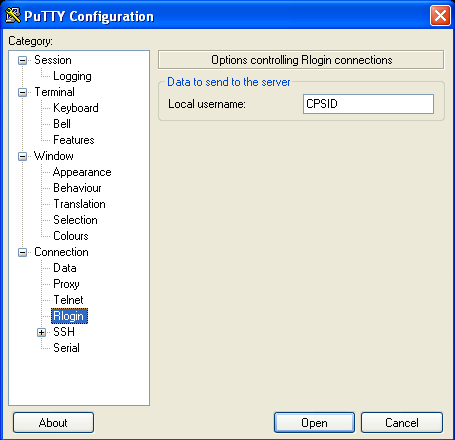
- Set the Local username to CPSID
4Click the Session item again in the left tree menu:
- Click Save again to store the changes.
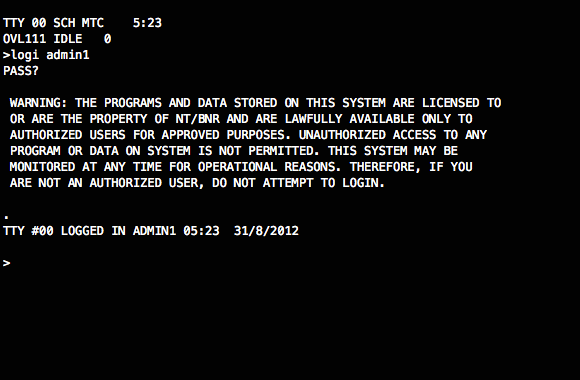
Hit enter a couple of times, and login with the LOGI command.
NOTE: Make sure there are 3 PTY's (pseudo-tty's) built.
If not, add them in case one locks up.
CPSID arguments:
You can change the CPSID option as follows:
- CPSID1000 enables MTC messages
- CPSID0100 enables SCH messages
- CPSID0010 enables BUG messages
- CPSID0001 enables TRF messages
Values can be combined:
eg: CPSID1110 will enable MTC, SCH and BUG messages for the session.
From the UNIX command line, use the -l option with CPSIDXXXX as the username.
eg: rlogin -l CPSID1110 <ip> will login and enable MTC, SCH and BUG messages.