Installer PC Hookup
During installation it is recommended that the IP Office control unit is started without a network connection. This ensures that the IP Office defaults to a known set of IP address settings. See default IP addresses below.
If the IP Office is in a network with a DHCP server, the programming/admin PC will need to be connected to the same network as either a DHCP client or with an IP address valid for that network.
Requirements:
- PC/laptop with Manager application
- Network patch Cable connection
Note the location of the LAN and WAN ports! We can use one of these to directly connect to the IP Office.
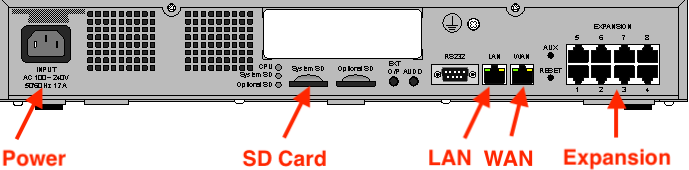
The WAN port will often be connected to a data switch or router, and the LAN port reserved for admin access.
Connecting to an IP Office:
- An IP Office Control Unit has the following default IP addresses:
LAN1 / LAN192.168.42.1 / 24LAN2 / WAN192.168.43.1 / 24
To directly connect a PC or laptop to an IP Office network port, change the PC's TCP/IPv4 network properties to the following:
PC → LAN1 / LANIP address: 192.168.42.2
Subnet mask: 255.255.255.0
Default gateway: 192.168.42.1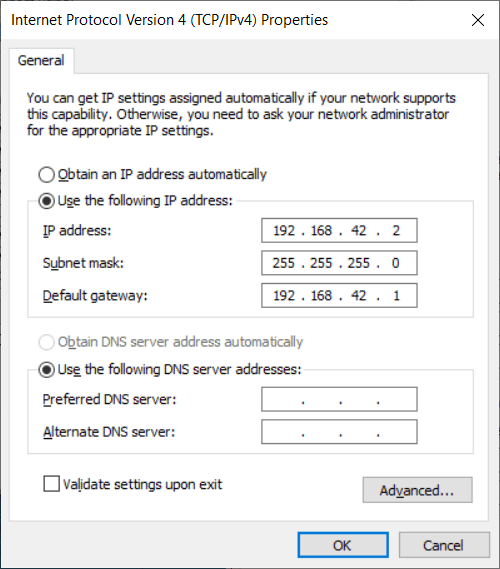 PC → LAN2 / WANIP address: 192.168.43.2
Subnet mask: 255.255.255.0
Default gateway: 192.168.43.1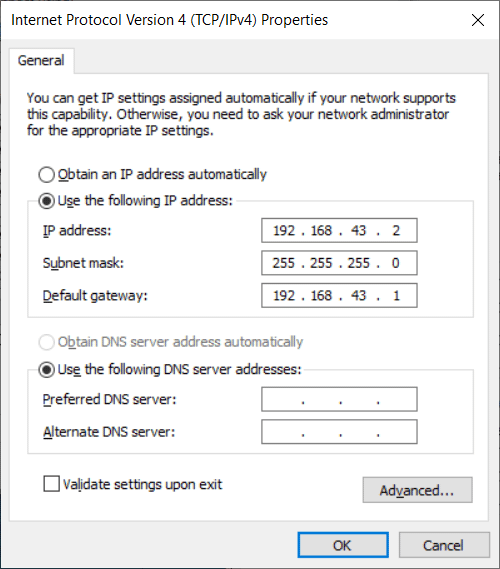
Note:
- The default gateway can be set to the IP Office IP address, or left blank.
- If an IP Office network port is normally connected to a switch or router, the address is probably NOT default!
- Setting the PC to DHCP may work, but is not recommended; especially for advanced functions such as firmware upgrades.
- Connect a network cable from the PCs LAN port to the LAN (or WAN) port on the IP Office control unit.
- Check that the orange LED on the IP Office LAN port is on. The green LED may also be flickering indicating network activity.
- To test the connection before running Manager or System Status Application:
- Select Start ➤ Run and type cmd to open a command window
- Enterping 192.168.42.1. You should see ping replies from the IP Office.
- If there are no ping replies, enteripconfigand confirm the the IP settings are correct. - Open IP Office Manager, and select File ➤ Open Configuration from the menu bar.
- The Select IP Office window opens, after a short delay, the IP Office system should appear.
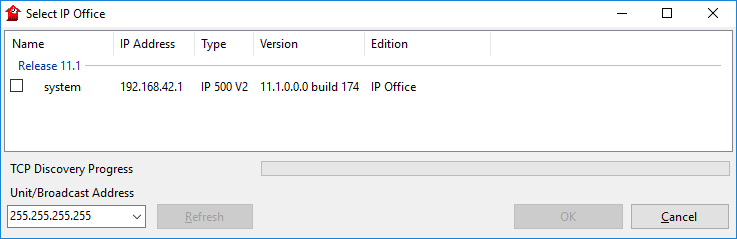
- Click the check the box next to the system name, and then click OK to open the configuration.
- The name and password request is displayed. The default username/password is:Username: Administrator Password: Administrator If you are unable to click the system checkbox, the Manager version is likely lower than the IP Office version.
Upgrade the IP Office Admin Applications software suite, and try again!
If the IP Office system is not found, but the IP address is known/successfully pings, manually enter this address in the Unit/Broadcast Address field and click Refresh to search again.
Help!
- If the IP Office IP addresses are not known, see Set/display IP address.
- If the IP Office Passwords are not known, see Reset all passwords.